Set up your personal workspace
Personal is the workspace A32 creates for you. It holds your instances, hosting credit and API keys. An instance is the remote Linux machine that runs your commands and holds your project files. You can create a second instance when you need a separate environment.
- Select Personal in the dashboard workspace switcher. Open Instances and choose New instance.
- Name the machine and check its plan, disk and awake and sleeping rates. Standard with the smallest disk is a starting point for a small repository. Choose more memory or disk for workloads that need it.
- Open Terminal. Connect either Claude Code with your eligible Claude account or Codex with your eligible ChatGPT account using the provider’s sign-in flow. To use a provider API key, configure it in Env for the chosen agent.
Follow the Claude Code setup or Codex setup for sign-in details.
Bring a project and give the agent a task
- Use Git in Terminal to clone your repo into a directory such as
~/workspace/my-app. For a private repo, use your normal authorized Git sign-in. You can also upload files from Files. - Open Run agent, select your connected agent and set Working dir to
workspace/my-app. The path is relative to the instance’s home directory. - Try “Run the project’s test suite and summarize any failures. Leave the files unchanged.” Enable Run in background for a task you want to check later. The instance handles the agent commands, dependency installs, builds and tests.
Your browser connects to the cloud machine even on a lower-memory laptop. A supported browser and internet connection are enough to access the terminal and results. The machine size you choose determines how much CPU and RAM your project gets.
Come back to the same work
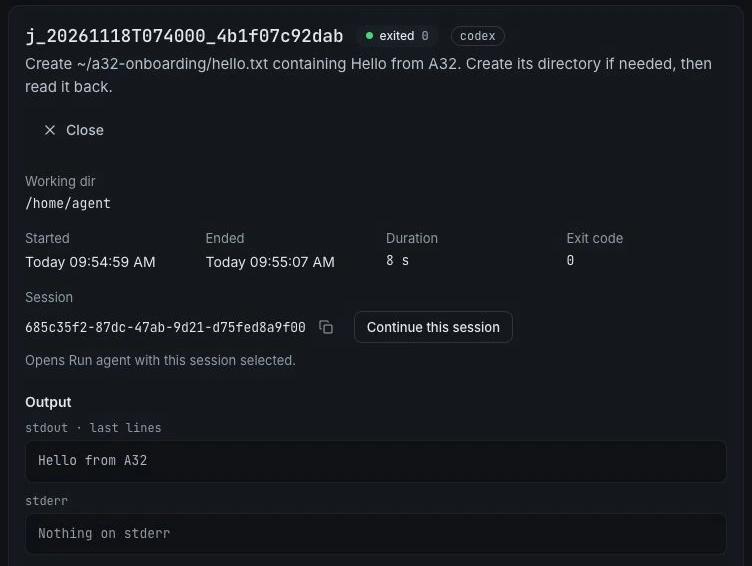
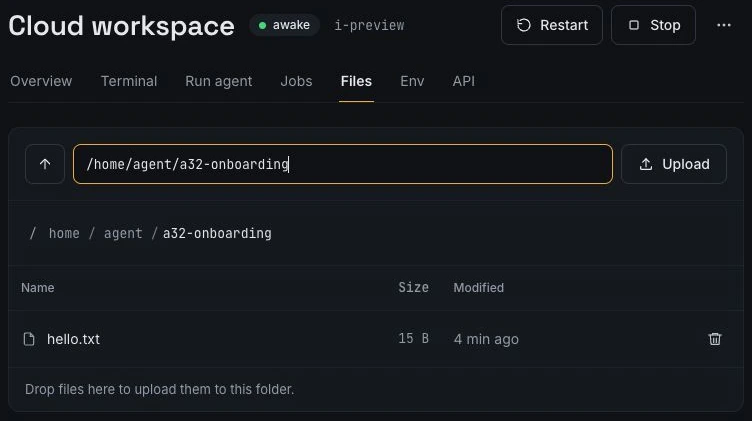
Sign in from another browser, select the same workspace and open the same instance. In Jobs, check the run’s status and output. If it has a saved agent session, choose Continue this session to send a follow-up. In Files, open or download the result. Use git diff in Terminal to review code changes.
Your cloud clone and your local clone are separate copies. Use Git or file transfers to move changes between them. Keep important work in version control or your own backups. Use the Agent API when a script should run a task in the same environment.
What stays when you disconnect, sleep or stop
| Action | Work and files |
|---|---|
| Close your browser or laptop | Managed jobs continue on the instance. Return to Jobs for the result. |
| The instance sleeps | Processes stop. Files, tools installed under your home directory and saved logins stay on disk. A running managed job keeps the instance awake. |
| Stop or restart the instance | Running jobs and terminal sessions end. Home files and saved logins remain. Start a manually stopped instance when you need it again. |
| Delete the instance | Its volume is removed. Copy out any files you want to keep first. |
Terminal sessions can reconnect while the instance is awake. Use a managed job for long work that may spend time waiting.
Use a team workspace for shared projects
For a shared project, choose New team workspace… in the workspace switcher and invite colleagues from Members. A team workspace has its own instances, balance and API keys. Switch back to Personal for your own work.
Viewers can see instance status and workspace information. Developers can work in the terminal, run jobs and access project files. Admins manage invitations and credit. The owner can also transfer ownership. People with machine access can use credentials available on that machine, so use a provider account and repository access authorized for the team. See Security & data.
Know what you pay for
Hosting credit pays for the remote machine and retained disk. Sleeping reduces compute charges while disk and configured egress remain billable. Your provider bills any model usage separately under your eligible subscription or API key.
Use the hosting estimator to compare plans. Try a representative job on the welcome credit and check both the result and your usage in Billing. If you already have a machine or server, compare your hosting options.
Published by agent-32 · Reviewed 18 November 2026.